Custom domain guide
Connect and activate a custom domain on LandingRent
Follow four illustrated steps to connect a domain you own, verify its DNS records, and automatically enable HTTPS for your website.
- From dashboard to HTTPS
- 4 steps
- For the www version
- 1 CNAME record
- Typical DNS propagation
- 5-30 minutes
- HTTPS certificate setup
- Automatic
What are you connecting?
A domain is the address customers type into a browser, such as yourstore.com. LandingRent continues to operate the website, while the domain remains in your account with your domain registrar.
DNS records act as directions that point the domain to the server hosting your website. After LandingRent confirms the records, the platform configures the website and enables HTTPS for that domain.
Prepare these before you start
An active website
You have selected a template and can see the website under My Websites.
A domain you own
The domain was purchased from Mat Bao, Nhan Hoa, GoDaddy, Namecheap, or another registrar.
Access to DNS settings
You can sign in to your registrar and open its DNS records section.
The domain in plain format
Enter yourstore.com in LandingRent without http://, https://, or a path.
Four steps to activate your domain
Menu names vary by registrar, but the Host, Type, and Value fields have the same purpose.
01
Open the website that needs the domain
Sign in to LandingRent, open My Websites, and select the website you want to publish on your custom domain.
- ✓Confirm that you selected the correct website and template.
- ✓If you have multiple websites, each one has its own domain settings page.
02
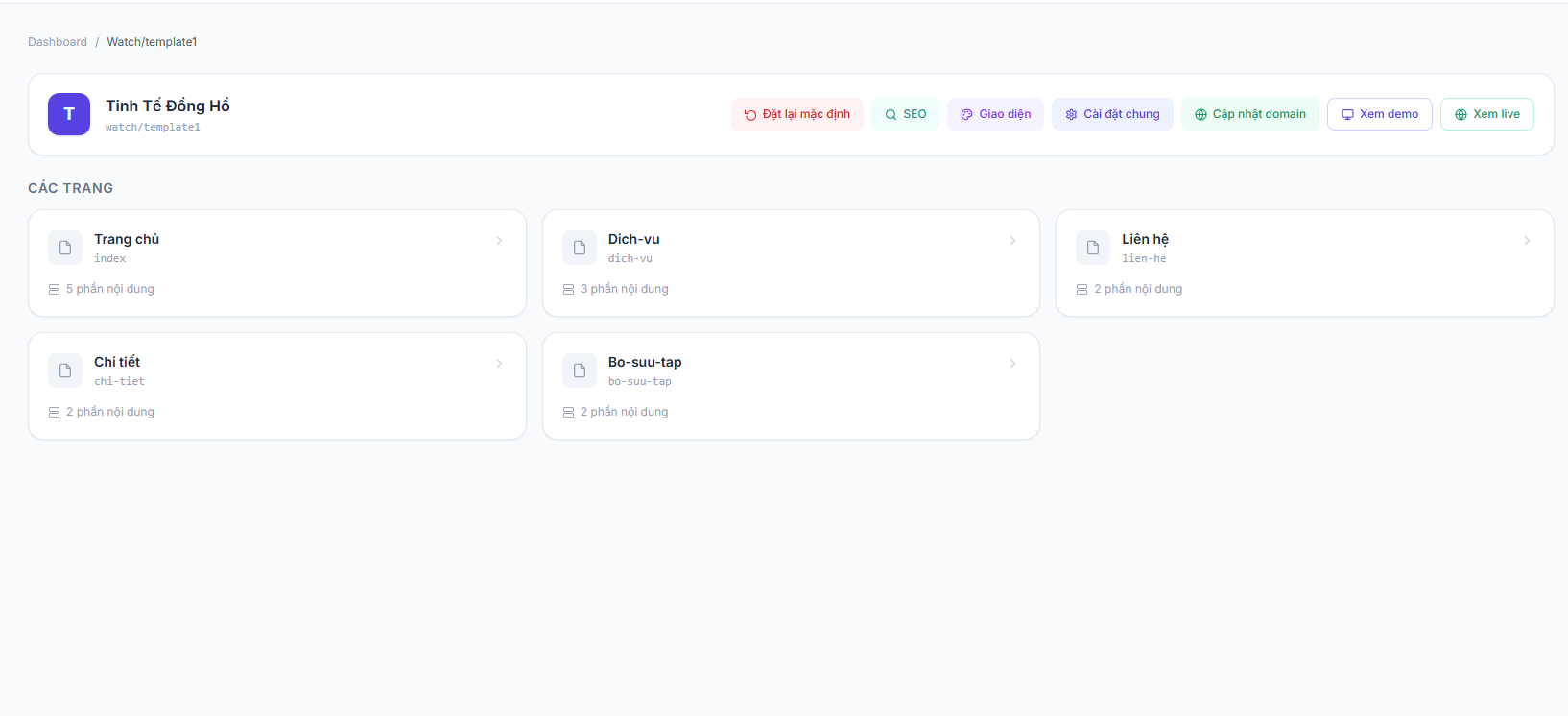
Select “Update domain”
On the website pages screen, select Update domain in the upper-right action area to open the configuration screen.
- ✓The button sits next to SEO, Appearance, and General settings.
- ✓You can also open the Domain activation guide in Manage and choose a website directly.
03
Create the DNS record pointing your domain to the site
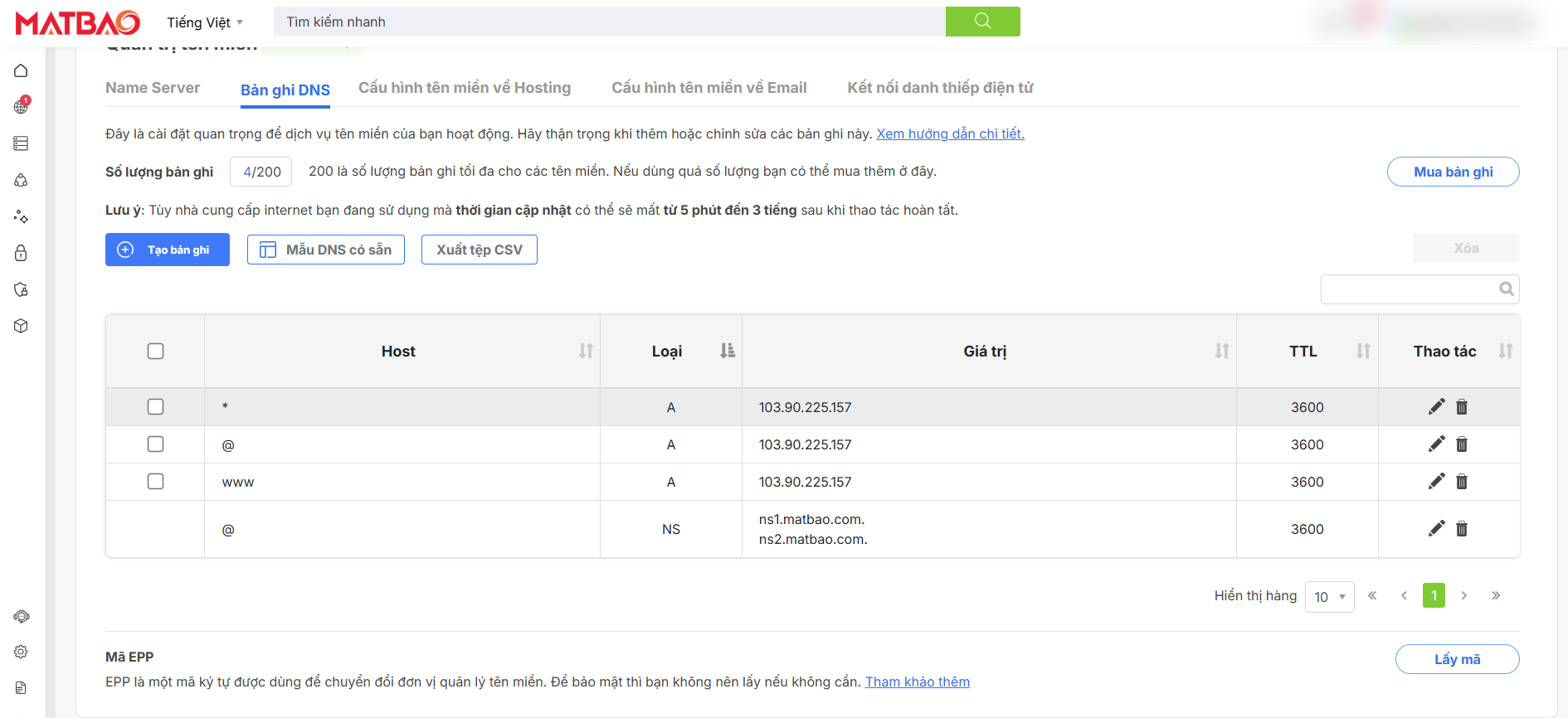
At your domain registrar, open DNS Records. The CNAME record for the www version is required; the root domain record is optional.
- ✓Host www, type CNAME, points to the LandingRent hostname (see the table below).
- ✓Root domain (@): use ALIAS/ANAME to the same hostname if your provider supports it, or skip it (www only).
- ✓If an old www record already exists, update it to avoid conflicts.
04
Check, confirm, and wait for HTTPS
Return to LandingRent, enter the domain without a protocol or trailing slash, select Check domain, and then Confirm domain when DNS is correct.
- ✓DNS commonly updates in 5-30 minutes, but some providers may take several hours.
- ✓The status changes to Pending while LandingRent configures the website.
- ✓When it shows Active, open the exact hostname you entered to verify the website.
DNS records to enter
The www record (CNAME) is required and points to the LandingRent hostname — this keeps your site working even if our servers change, without you touching DNS again. The root domain (@) is optional: use ALIAS/ANAME to the same hostname if your provider supports it.
| Host | Type | Value |
|---|---|---|
| www | CNAME | connect.landingrent.com |
| @ | ALIAS | connect.landingrent.com |
You can keep the default TTL. The www row is required; the @ row is optional — if set, visitors typing the bare domain are redirected to the www version. Many providers lack ALIAS/ANAME: in that case skip @ (use www only) or set @ as an A record to the current server IP. The Mat Bao screenshot is only a visual reference; do not copy the wildcard, NS, or other records from the image.
Understand the three activation statuses
Pending
DNS is confirmed and LandingRent is configuring the website and HTTPS.
Active
The hostname you entered is serving your website over HTTPS and is ready to share.
Failed
Review the DNS records, allow time for propagation, and confirm again or contact support.
If the domain check does not pass
No record was found
The record may not be saved or DNS may still be propagating. Review the www (CNAME) record and wait before checking again.
www points to the wrong place
Set the www record as a CNAME to the correct LandingRent hostname shown in the table and remove conflicting records.
The domain format is invalid
Enter only the domain, such as yourstore.com. Do not include http://, https://, a leading www when entering the root domain, or a path.
HTTPS is not active immediately
After DNS is correct, the platform needs additional time to configure the site and issue a certificate. Follow the status on Update domain.
Using a custom domain with a rented website
Renting a website does not mean sharing a generic address. An affordable LandingRent website can use a custom domain you own, while hosting, technical operation, and HTTPS are handled within the service scope.
A custom domain gives customers a consistent brand address to remember and share. For SEO, the domain is only one part; search visibility also depends on technical structure, useful content, internal links, speed, competition, and how Google crawls the website over time.
Custom domain questions
Do I need to purchase my own domain?+
Yes. You purchase and renew the domain through a registrar, then point its DNS to LandingRent. The domain remains in your account.
Does website rental include domain connection and HTTPS?+
LandingRent supports connecting a compatible domain and enabling HTTPS as part of operation. Domain registration and renewal are paid separately to your registrar.
Why do I need both @ and www records?+
The records prepare DNS for the root domain and the www hostname. LandingRent activates the exact hostname you enter; contact support if you want both versions to work or redirect automatically.
How long does activation take?+
DNS commonly updates in 5-30 minutes but may take longer. After confirmation, LandingRent usually needs about another minute to configure HTTPS, depending on certificate issuance.
Does connecting a domain guarantee a top Google ranking?+
No. A custom domain provides a stable brand URL, but rankings also depend on content quality, technical SEO, competition, and Google crawling the site.
Learn more about website rental
What is website rental?
Understand operation, editing access, and the setup process.
Read the details →What does an affordable website include?
Review pricing, scope, and costs to consider before starting.
Read the details →All-in-one website rental
Review hosting, SSL, backups, custom domains, and technical support.
Read the details →